Tools
Collection of modal operators for direct editing of points, points container object or mesh. If operator is running all panels but Tools are disabled. To switch tool, click its button on panel.
All Retopology and Transform tools and Place 3D Cursor (GPU) are GPU accelerated. They utilize GPU for point selection. Points are selected in Detection Radius around mouse pointer, point closest to screen space center is selected. Point selection works best if points are that dense so they cover points behind them. If your points are too sparse, there are several options how to prevent selection of points behind those on “surface”. Increase point pixel size, or enable Display > Points > Adaptive Size and adjust point size so they cover space between them, or enable Use Depth (D key shortcut) at running tool panel to utilize gpu depth buffer to determine which points are closest in tool Detection Radius.
All tools when running shows help panel in viewport with all modal shortcuts. This help panel can be toggled with H key or disabled in preferences Show Help Panel At Tool Start.
Warning
Tools (all of them depends on selecting point on screen) will not work on Windows and Linux with Vulkan GPU Backend in Blender 4.5 - 5.0. Change to OpenGL GPU Backend in Blender Preferences in order to make it work. Reported issue and it has been fixed. Blender 5.1 works fine with Vulkan backend.
3D Cursor
3D Cursor tools operate only on 3d Cursor.
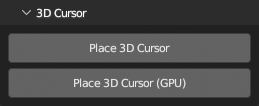
Place 3D Cursor
Place 3D Cursor on closest point in cloud under mouse cursor. CPU variant, faster on smaller datasets.
LMB: PlaceShift+LMB: Place and align with normalLMB+drag: Continuous placeH: Toggle Help panelESC: Exit
Place 3D Cursor (GPU)
Place 3D Cursor on closest point in cloud under mouse cursor. GPU accelerated variant, faster on large datasets.
LMB: PlaceShift+LMB: Place and align with normalLMB+drag: Continuous placeD: Toggle using depth buffer for point selectionH: Toggle Help panelESC: Exit
Transform
Transform tools operate on points container object. They will not modify points only container transformation in world coordinates.
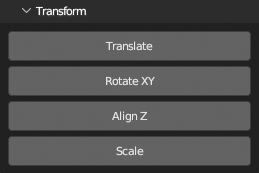
Translate
Translate points container so selected point is at chosen location.
LMB(+drag): Set pointF: TranslateD: Toggle using depth buffer for point selectionRMB: Cancel current transformCTRL(+SHIFT)+Z: Undo(Redo)H: Toggle Help panelESC: Exit
Rotate XY
Rotate points container to align AB and BC lines between chosen 3 points and world Y and X axes.
LMB(+drag): Set 3 pointsF: RotateC: Toggle Use CornerD: Toggle using depth buffer for point selectionRMB: Cancel current transformCTRL(+SHIFT)+Z: Undo(Redo)H: Toggle Help panelESC: Exit
Align Z
Rotate points container to align tow selected points with world Z axis.
LMB(+drag): Set 2 pointsF: AlignC: Toggle Use FirstD: Toggle using depth buffer for point selectionRMB: Cancel current transformCTRL(+SHIFT)+Z: Undo(Redo)H: Toggle Help panelESC: Exit
Scale
Scale points container to make length between two selected points equal chosen value.
LMB(+drag): Set pointsF: ScaleC: Toggle Use CenterD: Toggle using depth buffer for point selectionRMB: Cancel current transformCTRL(+SHIFT)+Z: Undo(Redo)H: Toggle Help panelESC: Exit
Cleanup
Cleanup tools will remove selected points from memory. If you need to save edits, export as ply after you are finished with cleanup.
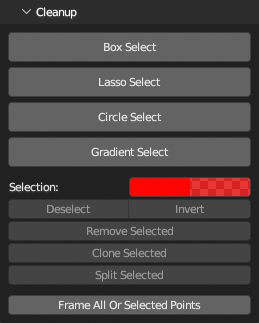
Box Select
Select points using box selection.
LMB+drag: Draw selectionSHIFT+LMB+drag: Add to selectionCTRL+LMB+drag: Subtract from selectionA: (De)Select allRMB: Deselect allI: Invert selectionX: Remove selectedH: Toggle Help panelESC: Exit
Lasso Select
Select points using lasso selection.
LMB+drag: Draw selectionSHIFT+LMB+drag: Add to selectionCTRL+LMB+drag: Subtract from selectionA: (De)Select allRMB: Deselect allI: Invert selectionX: Remove selectedH: Toggle Help panelESC: Exit
Circle Select
Select points using circle selection.
LMB+drag: Draw selectionSHIFT+LMB+drag: Add to selectionCTRL+LMB+drag: Subtract from selection[and]: Adjust radiusA: (De)Select allRMB: Deselect allI: Invert selectionX: Remove selected pointsH: Toggle Help panelESC: Exit
Gradient Select
Select points using gradient selection.
LMB+drag: Draw selectionSHIFT+LMB+drag: Add to selectionCTRL+LMB+drag: Subtract from selectionC: toggle constrain to vertical and horizontal axesA: (De)Select allRMB: Deselect allI: Invert selectionX: Remove selected pointsH: Toggle Help panelESC: Exit
Retopology
Retopology tools operate on separate mesh object. You can create one before running tool or create new at any time while tool is running.
For better mesh visibility while any Retopology tool is running, target mesh is hidden from viewport and drawn on top of points with custom shaders.
All Retopology tools allow switching to Blender Mesh Edit mode at any time for using Blender tools. When edit mode is exited, initial Retopology tool will be restored. In short, TAB into mesh edit mode, do what is needed, TAB back to initial Retopology tool to continue.
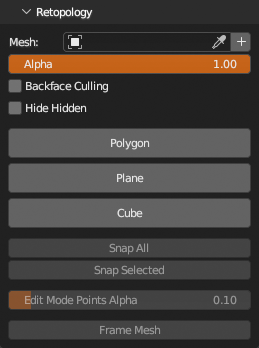
Polygon
Draw polygons while snapping vertices on points or existing vertices in target mesh.
LMB: Place (on points) / Select (vertex in mesh)LMB+drag: Continuous place (on points) / Select more (vertices in mesh)CTRL+LMB+drag: Tweak placed point (while snapping on points and vertices) / Tweak mesh vertex (while snapping on points and vertices)D: Toggle using depth buffer for point selectionB: Toggle Ignore Backfacing (for mesh vertices selection)M: Toggle Merge Mesh Vertices (disabled if selection exists)RMB: Cancel current polygon / Cancel tweak if activeF: Make polygon from placed and/or selected / Make quad from single selected mesh vertex in corner and mouse locationX: Delete selected mesh verticesTAB: Toggle Mesh Edit modeCTRL(+SHIFT)+Z: Undo(Redo) mesh edits only (Toggle Mesh Edit mode resets history)CTRL+S: Save the current Blender fileH: Toggle Help panelESC: Exit
Trace
Trace floor plan while snapping vertices on points and keeping the same height
LMB(+drag): Place vertex’,CTRL+LMB: Tweak vertex with snapping’,CTRL+SHIFT+LMB: Tweak vertex without snapping’,F: Make line/polygon’,E: Toggle Fill’,C: Toggle Cyclic’,A: Toggle Auto Commit’,RMB: Cancel current line’,D: Toggle using depth buffer for point selection’,TAB: Toggle Mesh Edit mode’,CTRL(+SHIFT)+Z: Undo(Redo) (Mesh Edit mode resets history)’,CTRL+S: Save the current Blender file’,H: Toggle Help panel’,ESC: Exit’,
Plane
Make quad plane rotated to fit selected points.
LMB(+drag): Select pointsCTRL+LMB(+drag): Deselect pointsCTRL+SHIFT+LMB(+drag): Rotate planeRMB: Cancel current planeF: Make planeN: Make plane as new mesh objectD: Toggle using depth buffer for point selectionTAB: Toggle Mesh Edit modeCTRL(+SHIFT)+Z: Undo(Redo) (Mesh Edit mode resets history)CTRL+S: Save the current Blender fileH: Toggle Help panelESC: Exit
Cube
Draw Cube alias Rectangular Cuboid snapped to points by setting three initial corners and arbitrary height.
- 3x
LMB(+drag): Place Cube Corners (drag moves last placed) - After 3rd corner, set cube height
- 4th
LMB: Make cube CTRL+LMB: Tweak last cube vertices freelyCTRL+SHIFT+LMB: Tweak last cube vertices and snap to pointsRMB: Cancel current cubeD: Toggle using depth buffer for point selectionTAB: Toggle Mesh Edit modeCTRL(+SHIFT)+Z: Undo(Redo) (Mesh Edit mode resets history)CTRL+S: Save the current Blender fileH: Toggle Help panelESC: Exit